
Comm100’s SMS integration makes it easy to handle SMS messages sent to your business alongside your other communication channels. The integration allows you to receive SMS messages from your customer and reply to them from inside the Comm100 Agent Console. This means that you can provide quicker, more effective customer service over SMS than ever before.
To use Comm100's SMS integration, you must first set up an account and phone number with Twilio. You have the option to purchase a new phone number from Twilio or host your existing numbers which currently supports USA and Canada numbers only. To understand what Hosted Numbers are and how to host them, you can check the Hosted Numbers FAQ from Twilio.
- If you have a toll-free number applicable to the US and Canada, ensure it is verified before using it for SMS messaging. You can find relevant details from the Toll-Free Verification Console Onboarding Guide.
- If you intend to register your business for A2P 10DLC messaging capabilities as a Standard or Low-Volume Standard Brand, you must complete the A2P 10DLC registration in the Twilio Console. For detailed steps, please check the Direct Standard and Low Volume Standard Registration Overview Guide.
- The cost of sending an SMS may vary depending on the carrier to which the SMS is sent. For detailed pricing information, please contact Twilio team.
- SMS functionality is available through our Omnichannel Ultra plan. You can chat with us online or consult your Account Manager for additional details.
Step-by-Step Instructions
To set up SMS integration using Twilio, follow these steps:
- Log in to your Comm100 control panel.
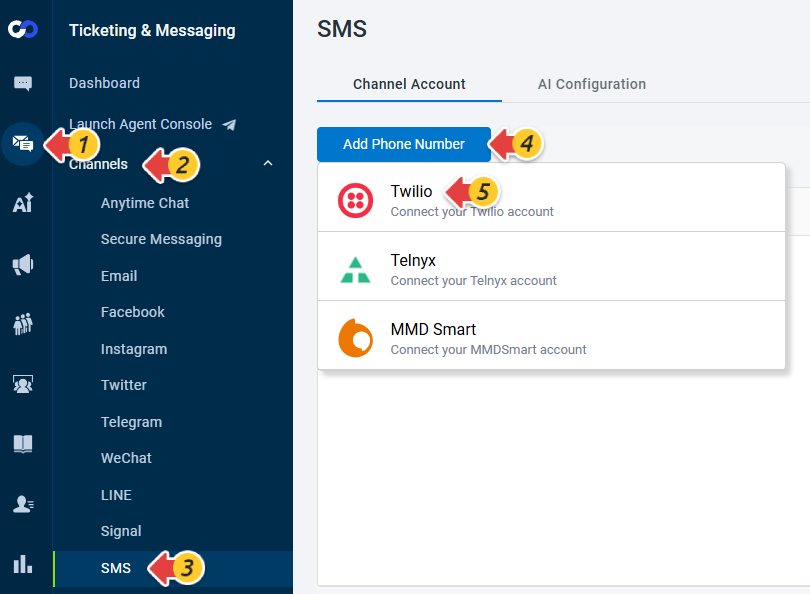
- From the left navigation menu, go to Ticketing & Messaging > Channels > SMS.
- Click Add Phone Number and choose Twilio.
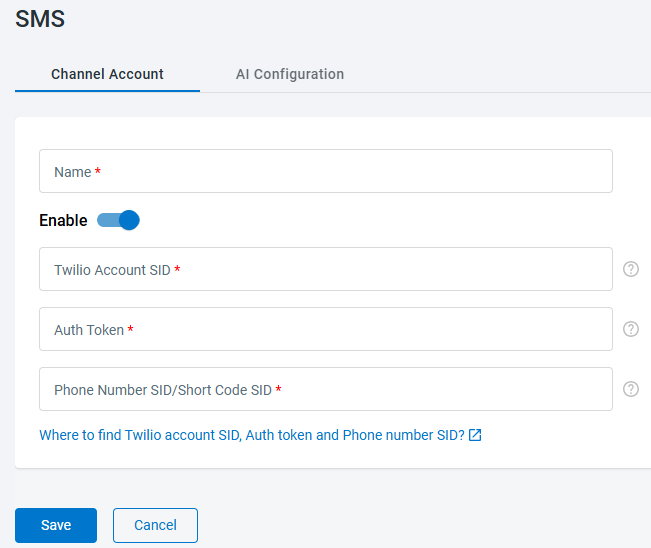
- Enter a Name, turn on the Enable toggle and provide the details of Twilio Account SID, Auth Token, and Phone Number SID/Short Code SID. To learn more on where you can find the Twilio Account SID, Auth Token and Phone Number SID, see this article.
- Click Save.
The phone number is added. You can continue to add more phone numbers if you have more than one you want to manage using Comm100.
How to Send and Receive SMS Messages Using the Agent Console
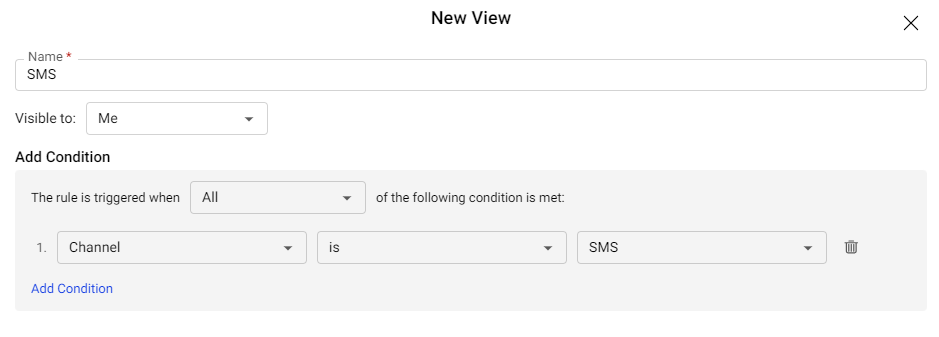
After setting up your SMS integration, any messages sent to your integrated SMS number will automatically be converted into tickets under Ticketing & Messaging in the Agent Console. You can create a dedicated View to display only SMS-related conversations for easier tracking and management.
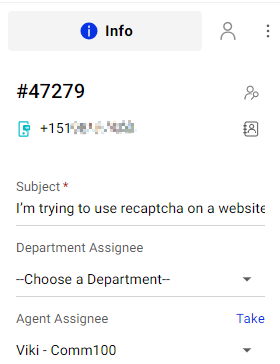
All inbound SMS messages include available user information associated with the phone number. This information appears within the Info panel of the ticket, helping you better understand the customer’s context.
Agents can reply to SMS messages directly from the Agent Console, just as they would respond to social messaging conversations. Just type out your responses in the reply area and hit send! The response will be delivered to the customer as an SMS message.
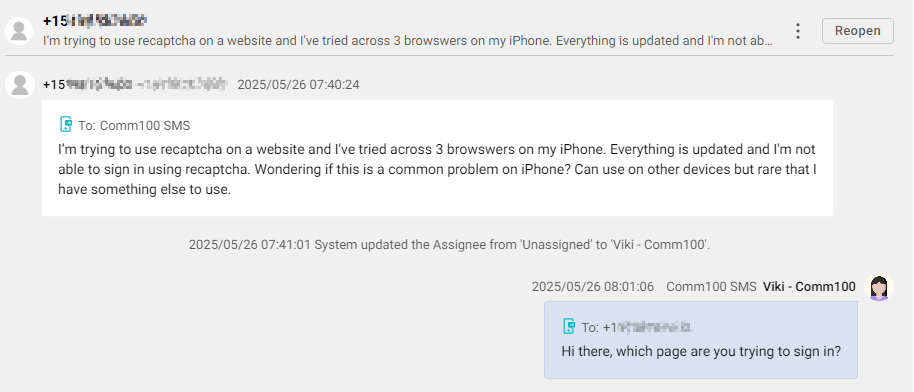
Using SMS within the Agent Console allows you to manage text conversations alongside other messaging channels, helping improve response speed and service quality.
To learn how to set up SMS integration using Telnyx, see this article.