
This guide will help you get started configuring the Comm100 Ticketing & Messaging to suit your needs and point you in the direction of different things to review before going live.
Work through each section step by step. To configure each area, you will need to decide on the features and configuration you wish to use. Once you have worked through the guide, you'll be ready to launch.
In case you want to download this article, click Getting Started Guide for Ticketing & Messaging.
Ticketing & Messaging is available in our trial package. You can register for a 30-day trial account to explore the product on your own, or book a demo with our sales team to discuss your requirements and see the solution in action.
All support requests from visitors via multiple channels are generated as Tickets. You need to first set up channels from your Comm100 Control Panel. You can choose to integrate multiple accounts from the following channels:
- Anytime Chat
- Secure Messaging
- Telegram
- LINE
- Signal
- SMS
To learn more about integrating different channels, see this article.
Comm100 Ticketing & Messaging is a core component of the Comm100 digital omnichannel solution. You can manage any conversation that needs follow-up, regardless of where it happens and track tickets from the first call to resolution.
In addition, it takes control of your inbound support tickets and makes sure the correct department and agent handle them.
Create Views
Comm100 Ticketing & Messaging comes with system default Views—All, My Open, My Department, Unassigned, All Open, and @mentioned, which allows you to locate tickets on predefined conditions. In addition, you can also create custom Views to locate tickets as per your business needs. The Views help you narrow down the tickets in your ticketing system and only display the tickets which require your attention.
To learn more about creating Views, see this article.
Use @mentions
When working on a ticket, you may need to get other agents involved if you want them to follow up with a case and reach out to the customer, or simply want to provide visibility to others. The @mentions feature allows you to collaborate with other agents more efficiently and keep them in the loop by using a simple @ symbol in your ticket Note field.
To learn more on @mentions, see this article.
Merge Tickets
With Comm100 Ticketing & Messaging, you can merge the history of a source ticket with a target ticket. The merge operation is irreversible. After the merge, the target ticket keeps its property values. Future incoming emails, chat transcripts, and offline messages to the source ticket will automatically be attached to the target ticket. Your future search of the source ticket will bring up the target ticket.
To learn how to merge tickets, see this article.
Manage Contacts
In Comm100 Ticketing & Messaging, Contact is a visitor's identity with whom your agent communicates. Having a Contact helps you to track and manage the complete communication history of a visitor. You can Create, Edit, Change, Merge, and View Contacts.
To learn more on managing Contacts, see this article.
Use Signature
You can design and use your ticket signature, which will be visible automatically along with each of your ticket reply. A Ticket Signature is a block of text, sometimes with images or hyperlinks, appended to the end of a ticket message which often contains the sender's name, contact information, or website URL.
To learn more about designing your signature, see this article.
Create Internal Ticket
You can create internal tasks as tickets in Comm100 Agent Console and assign them to other agents in your team. You can also define the priority and apply tags on tickets to locate and review them later.
To learn more about creating an internal ticket, see this article.
Tag Messages
If you are handling many inquiries in your Comm100 Agent Console, you may want to further organize them by assigning keywords or tags. You can attach one or more customized keywords or phrases to each of your messages, making it easier for you to group them and review them later.
To learn more about adding tags to messages, see this article.
The settings enable you to configure and manage tickets from your integrated Ticketing & Messaging channels.
Routing Rules
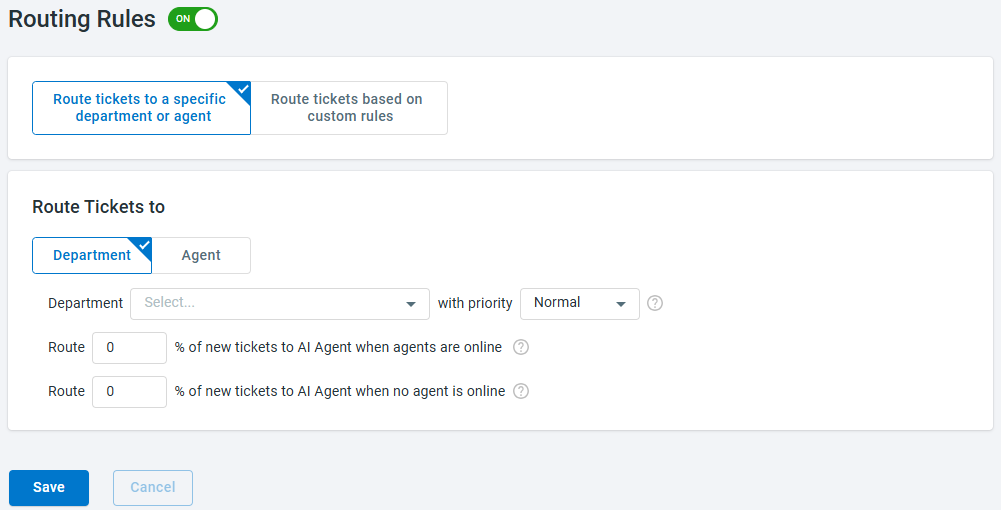
Routing rules dictate which department or agent is assigned a ticket when a customer reaches out and a new ticket is created. You will need to use routing rules to get visitor tickets sent through to appropriate agents or departments.
From the Comm100 Control Panel, you can route tickets:
- to a specific department or agent
- using custom rules
To learn more about setting up the routing rules for tickets, see this article.
Auto Distribution
Auto Distribution enables you to auto distribute tickets to agents to make sure the workload is distributed optimally. Once tickets are auto-distributed, agents do not need to pick up tickets manually. You can define distribution rules of how tickets are assigned to agents and the maximum tickets an agent can accept automatically.
To learn more about the auto distribution of tickets, see this article.

Triggers
Triggers allow you to automate several actions on an "if this, then that" basis. When certain conditions are met, you can have the system change a ticket's attributes such as status, priority, or assignee.
You can also have the system send out automated messages to customers, assignee, and other agents. If a ticket meets more than one trigger rule, the triggers will work in sequence based on their display order.
Using triggers, you can get multiple ways of automating system actions working together. For example, if a ticket has been pending a customer response for a week, you could trigger the ticket's status to change to closed and send an automated email to the customer letting them know their query has been closed.
To learn more about triggers, see this article.

SLA Policies
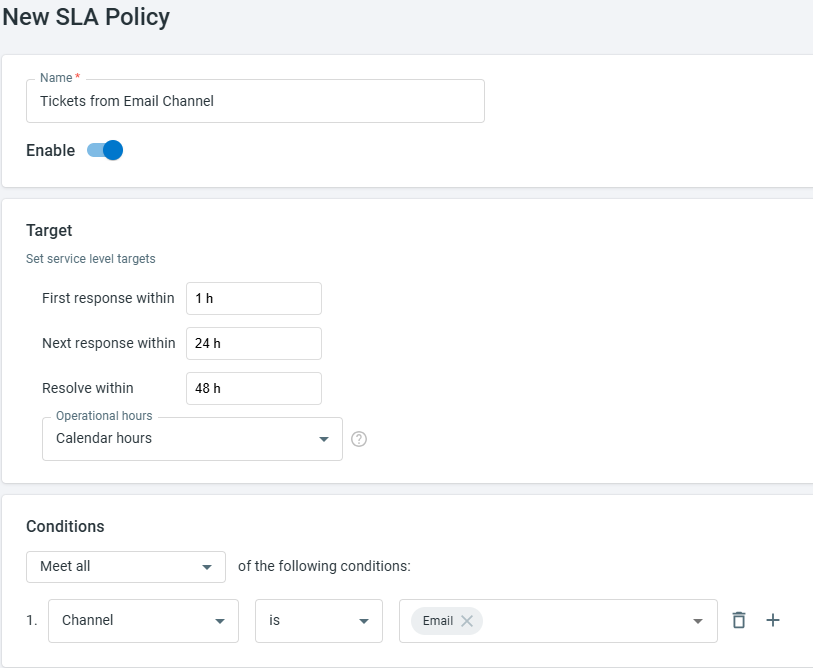
A service-level agreement (SLA) is a commitment between a service provider and a client. It lays out the expectations by which that service is measured. If your company uses SLAs to manage tickets, you can configure these within the Ticketing & Messaging system.
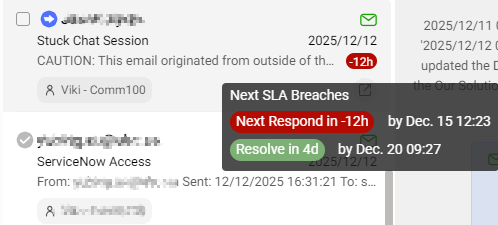
SLAs for different measures can then be seen within the Agent Console.
To learn more about SLAs, see this article.
Operating Hours & Holidays
You'll need to configure operating hours and holidays in your system to ensure that your trigger events and SLA policies work correctly. If you use the SLA feature, having a correct view of your team's hours is essential to ensure the clock displays the correct time. Operating hours and holidays also affect the ticket duration reflected in reports and be used to count days if they're used in trigger rules.
To learn how to configure operating hours and holidays, see this article.

Blocked Senders
The Comm100 Ticketing & Messaging system allows you to add an email account and create support tickets out of emails in the Inbox. However, your email account might also receive some unsolicited emails, which will create tickets as well.
The Block Sender feature helps you block unsolicited messages from specific email addresses or domains and move them to the Ticket Junk folder or reject them.
To learn how to block a sender's email and domain, see this article.

Secure Forms
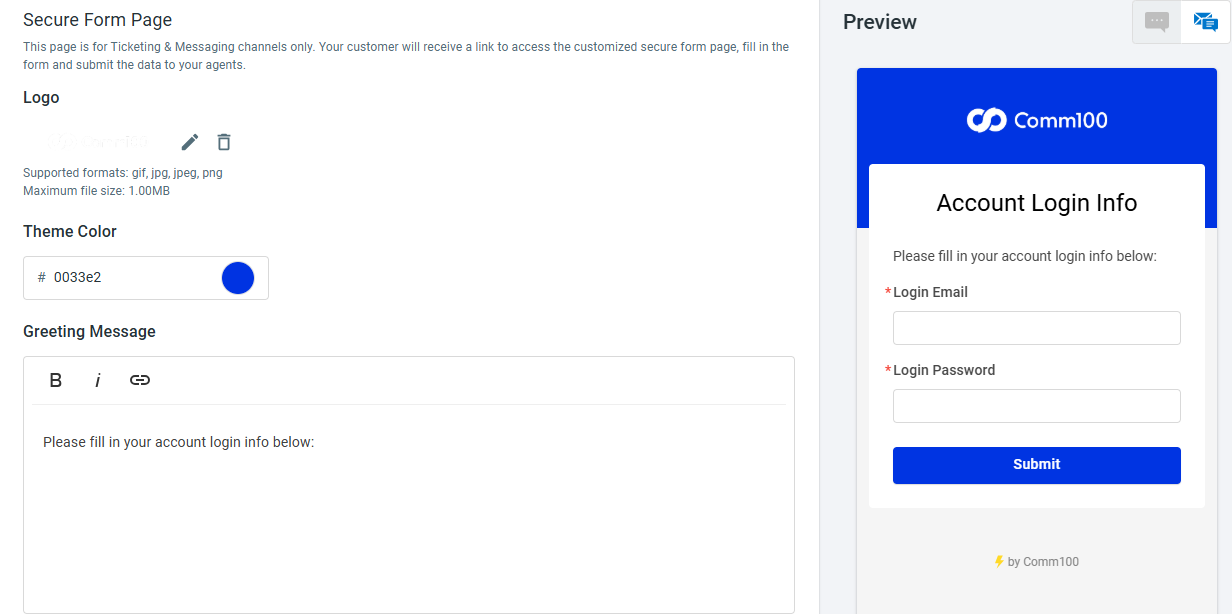
Secure Forms in Ticketing & Messaging allow you to gather customers’ sensitive information securely across Ticketing & Messaging channels during your ticket engagements with them. The information collected will be processed, stored, and transmitted in accordance with the PCI DSS rules to ensure the highest degree of security.
Fields & Mappings
A ticket field allows you to capture information and save it to a ticket. In addition to the System fields, which are default, you can create and map custom fields to serve your unique operational or business needs.
The following data types are available to create custom fields: Text, Text area, Email, URL, Data, Integer, Float, Operator, Radio, Checkbox, Dropdown List, and Checkbox List, and more.
To learn how to create custom fields, see this article.

Comm100 Ticketing & Messaging includes robust reporting that shows a clear picture of your channel's support traffic and performance metrics.
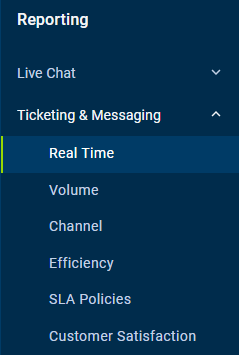
The report is broken down into six parts:
Real-Time Report
The Real-Time report gives an at-a-glance view of all ticket handling status and agent performance. This report keeps you informed in real-time of all conversations generated from your Ticketing & Messaging channels.
This report is further broken down into two parts: Right Now and Today.
Right now
Metrics in this report include:
- Unassigned Tickets: The total number of tickets that haven't been assigned to any departments or agents.
- Open Tickets: The number of tickets with statuses of New, Pending Internal, Pending External, or On-Hold.
- New Tickets: The number of tickets whose status is New.
- Pending Internal Tickets: The number of tickets whose status is Pending Internal. Usually, those tickets require your team's attention.
- Pending External Tickets: The number of tickets whose status is Pending External.
- On-Hold Tickets: The number of tickets whose status is On-Hold.
- Urgent Tickets: The number of tickets with Urgent priority.
- High Priority Tickets: The number of tickets with High priority.
- Today's Replied Tickets: The number of tickets that have been replied to today.
- Today's Resolved Tickets: The number of tickets that were resolved today.
Today
Metrics in this report include:
- Created Tickets: The number of tickets that were created today.
- Resolved Tickets: The number of tickets that were resolved today.
- Replied Tickets: The number of tickets that have been replied to today.
- Reopened Tickets: The number of tickets that were reopened today.
Volume Report
The Volume report shows how many tickets occurred on your site within a specific time period.
Metrics in this report include:
- Open Tickets: The number of tickets with statuses of New, Pending Internal, Pending External, or On-Hold.
- Created Tickets: The number of tickets that were created.
- Resolved Tickets: The number of tickets resolved within a defined time period.
- Replied Tickets: The number of tickets replied within a defined time period.
- Reopened Tickets: The number of tickets reopened within a defined period.
- Visitor Messages: The number of messages received from visitors in all tickets.
- Agent Messages: The number of messages sent by agents in all tickets.
This report can be viewed by Time, Department, Agent, Channel, or Channel account.
Channel Report
The Channel report breaks down the number of messages or posts from different channels within a specific time.
Metrics in this report include:
- Email: The number of tickets created from Email messages.
- Facebook
- Facebook Wall Post: The number of tickets created from Facebook Wall Posts.
- Facebook Visitor Post: The number of tickets created from Facebook Visitor Posts.
- Facebook Messager: The number of tickets created from Facebook Messages.
- Total: All tickets created from Facebook Wall Posts, Facebook Visitor Posts, and Facebook Messager.
- Instagram
- Instagram Post Comment: The number of tickets created from Instagram Post Comment.
- Instagram Post: The number of tickets created from Instagram Post.
- Instagram Direct: The number of tickets created from Instagram Direct.
- Total: All tickets created from Instagram Post Comment, Instagram Post, and Instagram Direct.
- Twitter
- Tweet: The number of tickets created from Twitter Tweets.
- Twitter Direct Message: The number of tickets created from Twitter Direct Messages.
- Total: The number of tickets created from Twitter Tweets and Twitter Direct Messages.
- WeChat: The number of tickets created from WeChat Messages.
- SMS: The number of tickets created from SMS Messages (Twilio).
- WhatsApp: The number of tickets created from the WhatsApp Business message.
- Chat: The number of tickets created from Live Chat.
- Offline Message: The number of tickets created from the Offline Message.
- Internal: The number of tickets created from Internal.
- LINE: The number of tickets created from LINE.
- Secure Messaging: The number of tickets created from Secure Messaging.
- Anytime Chat: The number of tickets created from Anytime Chat.
- Voice
- Voice Call: The number of tickets created from Voice Call.
- Voicemail: The number of tickets created from Voicemail.
- Total: The number of tickets created from Voice Call and Voicemail.
- Telegram
- Telegram Private: The number of tickets created from Telegram Private.
- Telegram Group: The number of tickets created from Telegram Group.
- Total: The number of tickets created from Telegram Private and Telegram Group.
This report can be viewed by Time, Department, Agent, or Channel Account.
Efficiency Report
The Efficiency report shows the agent's average response time, average first response time, the average time to close a ticket, and etc.
Metrics in this report include:
- Avg. Agent Response Time: The average amount of time it takes for an agent to respond to a ticket.
- Avg. First Response Time: The average amount of time it takes for an agent to send the first response in a ticket.
- Avg. Ticket Time: The average amount of time it takes an agent to resolve a ticket.
- Avg. Visitor Messages: The average number of messages sent by visitors in a ticket.
- Agent Messages: The average number of messages sent by agents in a ticket.
SLA Policies Report
The SLA Policies report gives you an overview of how your SLA policy is being followed.
Metrics in this report include:
- SLA First Response Rate: The percentage of the number of tickets whose first responses were sent within the SLA divided by the total number of tickets whose first responses were sent.
- SLA Avg. First Response Time: Total time of first responses sent within the SLA divided by the number of tickets whose first responses were sent within the SLA.
- SLA Next Response Rate: The percentage of the number of tickets whose next responses were sent within the SLA divided by the total number of tickets whose next responses were sent.
- SLA Avg. Next Response Time: Total time of next responses sent within the SLA divided by the number of tickets whose next responses were sent within the SLA.
- SLA Resolution Rate: The percentage of the number of tickets that were resolved within the SLA divided by the total number of tickets that were resolved.
- SLA Avg. Resolution Time: Total time of resolution done within the SLA divided by the number of tickets resolved within the SLA.
- Breached Tickets: The number of tickets that breached the SLA goal.
Customer Satisfaction Report
The Customer Satisfaction report shows how customers rate their support experience by summarizing survey results across your tickets.
Metrics in this report include:
- Avg. Score: The average rating given by customers based on all submitted satisfaction surveys.
- Rating Times: The total number of times customers submitted a satisfaction rating.