
Two-Factor Authentication (2FA) is a security process that requires two authentication factors to verify your identity. It adds an extra layer of security to your Comm100 account beyond your username and password, helping protect your account from unauthorized access.
Comm100 strongly recommends enabling 2FA to further enhance your account security. By adding this extra layer of protection, you can better safeguard your account and your customers' valuable data from unauthorized access and other cyber threats.
To use Two-Factor Authentication (2FA), agents and super-agents must install a supported authenticator app on a mobile device. During setup, use the app to scan the QR code displayed in Comm100 or manually enter the provided secret key. After the app is linked to your account, enter the six-digit verification code generated by the app to complete the setup.
- Comm100 supports 2FA using third-party mobile authenticator apps, such as Google Authenticator, Microsoft Authenticator, Authy, Duo Mobile, and so forth. Users of Apple devices (such as Mac, iPhone, iPad, or iPod touch) can also use the built-in authenticator available for their Apple ID.
- If you want to switch to a different authenticator app, reset your current 2FA before setting it up with the new app.
Set Up 2FA
If you are enabling 2FA for your account for the first time, you can set it up from the Comm100 Control Panel.
To set up 2FA, follow these steps:
- As an agent or super-agent, log in to the Comm100 Control Panel.
- From the left navigation menu, hover over your avatar and click your profile name.
- In the My Account drawer, select the Security Settings tab and click Set up.
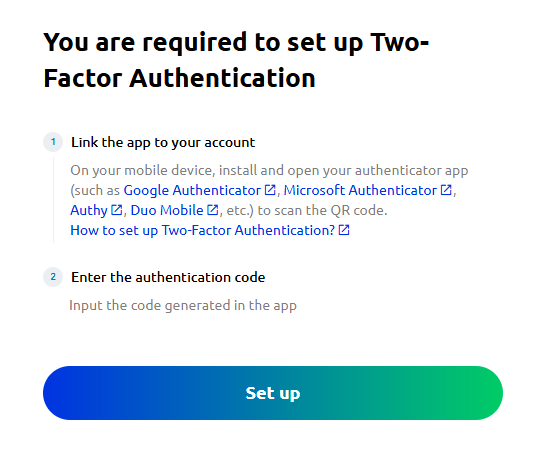
- Install a supported authenticator app on your mobile device, then scan the QR code displayed in the Link the app to your account drawer. If you cannot scan the QR code, enter the secret key displayed in the drawer into your authenticator app instead.
- Click Next.
- In the Enter the Authentication Code drawer, enter the six-digit verification code generated by your authenticator app.
- Click Done.


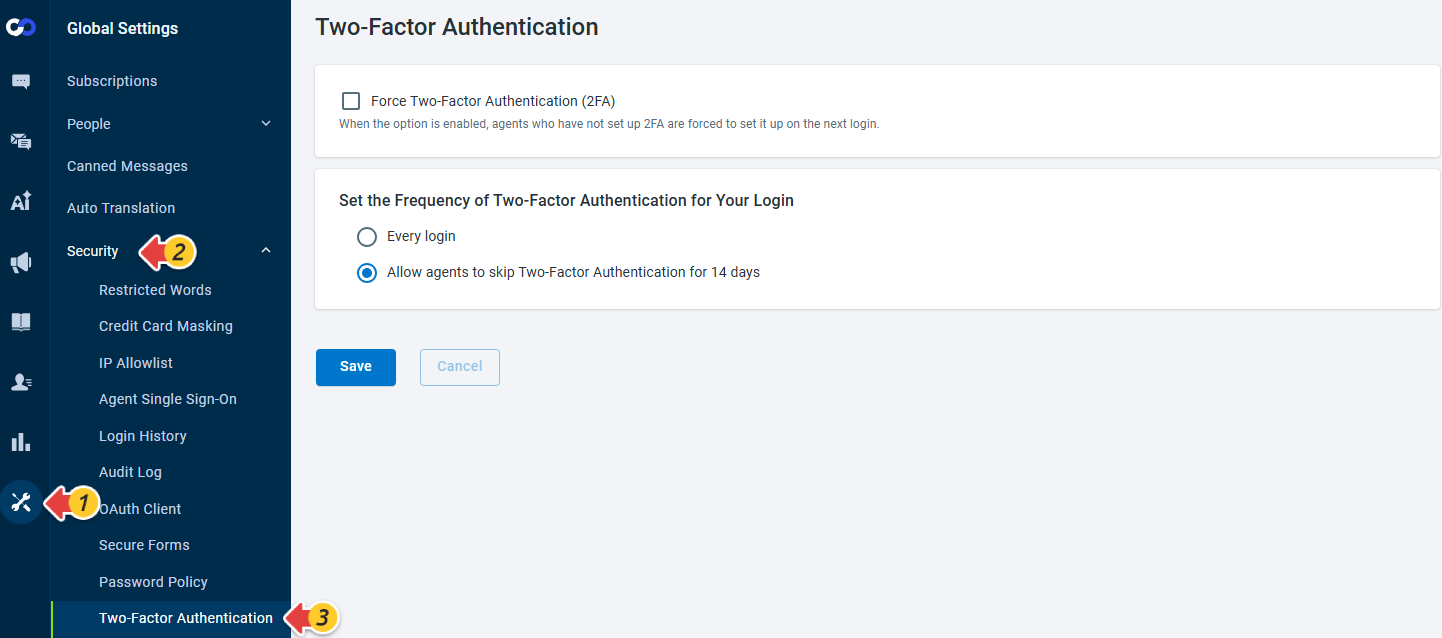
- By default, agents can skip 2FA on trusted devices for 14 days. Administrators can configure this setting in Global Settings > Security > Two-Factor Authentication to require 2FA for every sign-in. If an agent clears browser cookies or signs in using a different browser or device, it will no longer be recognized as a trusted device.
- If Force Two-Factor Authentication is enabled for your account, you will be prompted to complete the 2FA setup after entering your login credentials.
Reset 2FA
Your agents and super-agents can also reset the 2FA of their profile from the Control Panel. Resetting the 2FA of your account is required in the following cases:
- You want to switch to a different 2FA third-party authenticator app.
- Upon unlocking the locked account from your administrator, reset the 2FA.
To reset 2FA, follow these steps:
- As an agent or super-agent, log in to the Comm100 Control Panel.
- From the left navigation menu, hover over avatar and click your profile name.
- In the My Account drawer, select the Security Settings tab and click Reset.Note: In case you want to disable the 2FA, go to My Account drawer, select the Security settings tab and click Turn off.
- Scan the QR code displayed in the Link the app to your account drawer using your authenticator app.
- Click Next.
- In the Enter the Authentication Code drawer, enter the six-digit verification code generated by your authenticator app.
- Click Done.


Turn Off 2FA
To turn off 2FA, follow these steps:
- As an agent or super-agent, log in to the Comm100 Control Panel.
- From the left navigation menu, hover over your avatar and click your profile name.
- In the My Account drawer, select the Security Settings tab and click Turn off.

- You must complete the six-digit passcode authentication within 10 minutes after verifying your Comm100 credentials and ensure to provide correct passcode in 5 attempts to prevent your account from getting locked.
- If you are using Google Authenticator on Android, you need to select Sync now from the App's Settings and then Time correction for codes. If you are using other Authenticator apps or Google Authenticator on iOS, ensure your device's Date & Time is set to Set Automatically.
- Each authentication code is valid for 30 seconds. Always enter the latest code generated by your authenticator app.
Log In to the Comm100 Control Panel
To log in to the Comm100 Control Panel using 2FA, follow these steps:
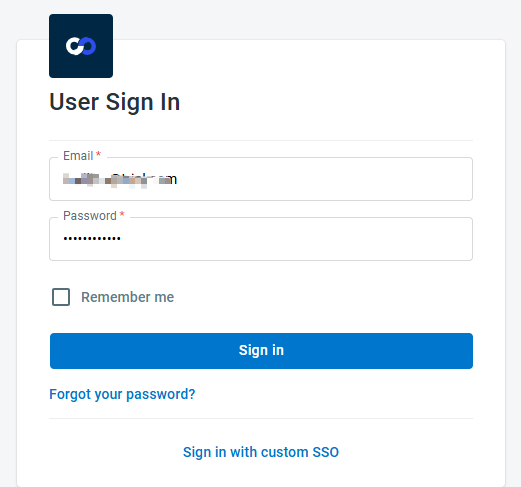
- On the User Sign In page, enter your Comm100 credentials, and click Sign In.
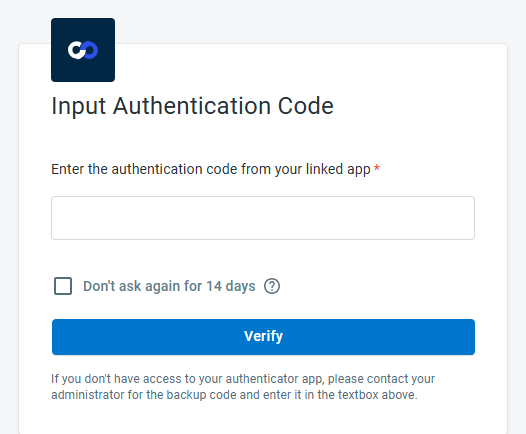
- On the Input Authentication Code page, enter the six-digit authentication code generated by your authenticator app and click Verify.
- You are successfully signed in to the Comm100 Control Panel.


Log In to the Comm100 Agent Console
To log in to the Comm100 Agent Console using 2FA, follow these steps:
- On the User Sign In page, enter your Comm100 credentials and click Sign in.
- On the Input Authentication Code page, enter the six-digit authentication code generated by your authenticator app and click Verify.
- You are successfully signed in to the Comm100 Agent Console.
Log In to the Comm100 Live Chat Mobile App
The Comm100 Live Chat mobile app supports 2FA on Android platform.
To log in to the Comm100 Live Chat mobile app using 2FA, follow these steps:
- On the sign-in page, enter your Comm100 credentials and tap LOG IN.
- On the Input Authentication Code page, enter the six-digit verification code generated by your authenticator app and tap Verify.
- You are successfully signed in to the Comm100 Live Chat mobile app.


To generate a backup code, follow these steps:
- Log in to the Comm100 Control Panel.
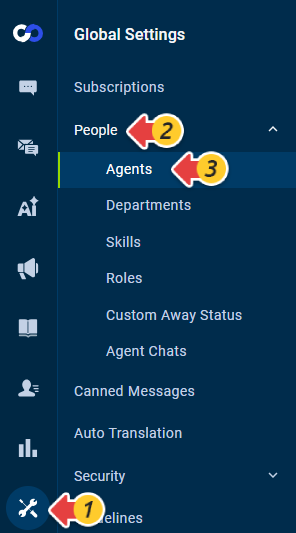
- From the left navigation menu, go to Global Settings > People > Agents.
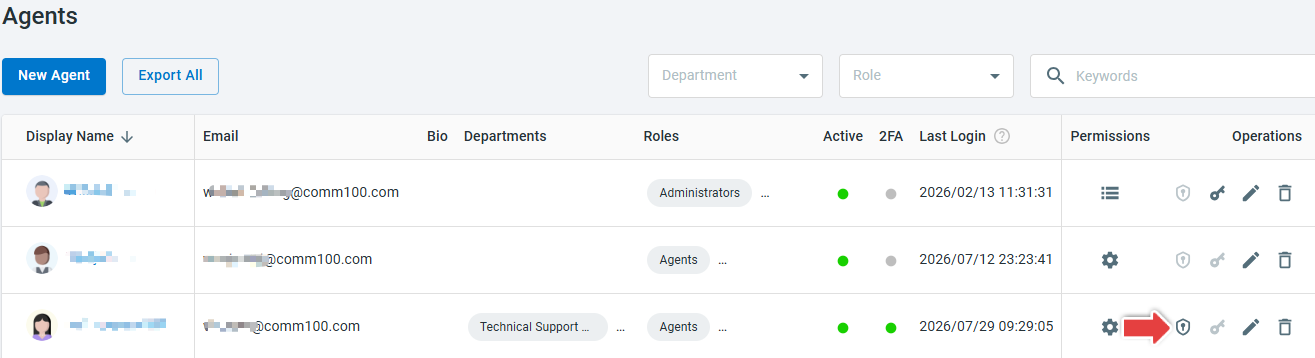
- Click the Get Backup Code icon in the Operations column for the desired agent.
- In the Get Backup Code drawer, click Generate a Code.
- Copy the generated backup code and share it with the agent or super-agent.Note: Each backup code can be used only once. The code expires after 30 minutes and will no longer work if it was already used or a new backup code is generated.


Your agent or super-agent can use the backup code on the Input Authentication Code page after successfully signing in with their Comm100 credentials on the sign-in page.

You may receive warning messages while logging into your Comm100 via Two-Factor Authentication.
Login Attempt Failed
Comm100 gives you five login attempts to input the authentication code you receive from the Authenticator app. However, if you fail to log in on the third and fourth attempt, the Input Authentication Code page displays a warning message: You have 2(1) login attempt(s) before your account is locked.

Provide the correct authentication code and click Verify to log in successfully to Comm100.
Sign In Attempt Timed Out
The Input Authentication Code page gives you 10 minutes to sign in. If you fail to sign in within 10 minutes, the Input Authentication Code page displays a warning pop-up: Sign In Attempt Timed Out.

Click Sign In Again to authenticate successfully to Comm100.
Incorrect Code
If you provide an incorrect code on the Input Authentication Code page, you get a warning message: Incorrect code, please try again.

Provide the correct authentication code and click Verify to log in successfully to Comm100.
Account Lock
Comm100 gives you five login attempts to input the authentication code you receive from the Authenticator app. However, if you fail to provide the correct code on all the attempts, your Comm100 account gets a lock. You need to contact your administrator to unlock the account or use the Forget Password link on the login page to reset the password.

Provide the correct authentication code and click Verify to log in successfully to Comm100.