Agent roles allow you to manage permissions for groups of agents more efficiently. Instead of assigning permissions to agents one by one, you can grant permissions at the role level and apply them to multiple agents at once.
In the Comm100 system, there are two default roles: Administrators and Agents. Administrators have full access to all system permissions and Agents have basic permissions, such as accepting chats. You can modify the default Agents role or create additional roles to meet your organization’s needs. To configure roles, you must be a site administrator or have permission to manage agents.
Step-by-Step Instructions
To create a role, follow these steps:
- Log in to your Comm100 Control Panel.
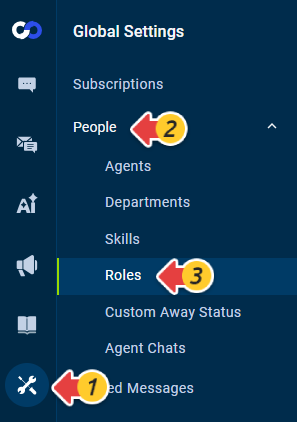
- From the left navigation menu, go to Global Settings > People > Roles.
- Turn on the Roles toggle.
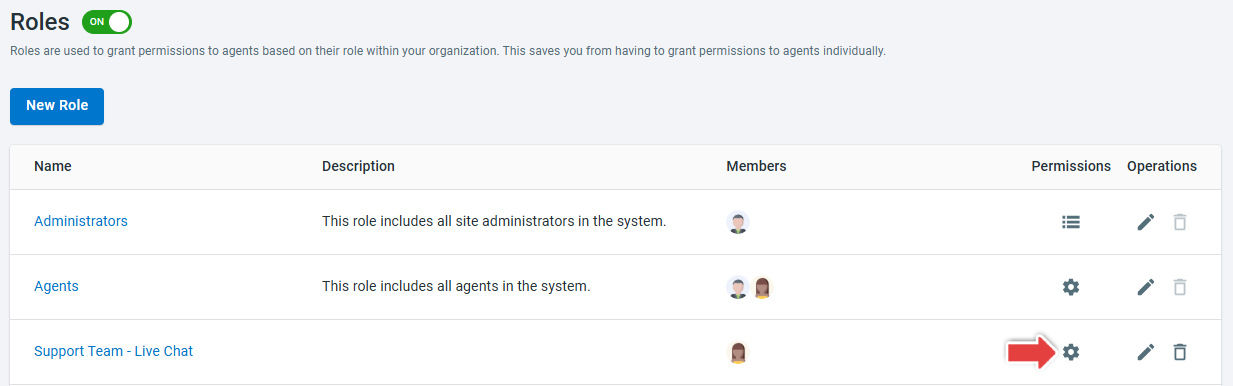
Once enabled, you will find two default roles: Administrators & Agents. The Administrators role includes all available permissions in the Comm100 system. - Click New Role.
- On the New Role page, enter a name for the role, and select the agents you want to assign this role.
- Click Save.


Newly created roles do not have any permissions by default. You can click the Mange role permissions icon under the Permissions column to grant permissions based on the responsibilities of agents assigned to the role.
To learn more about configuring agent permissions, see this article.